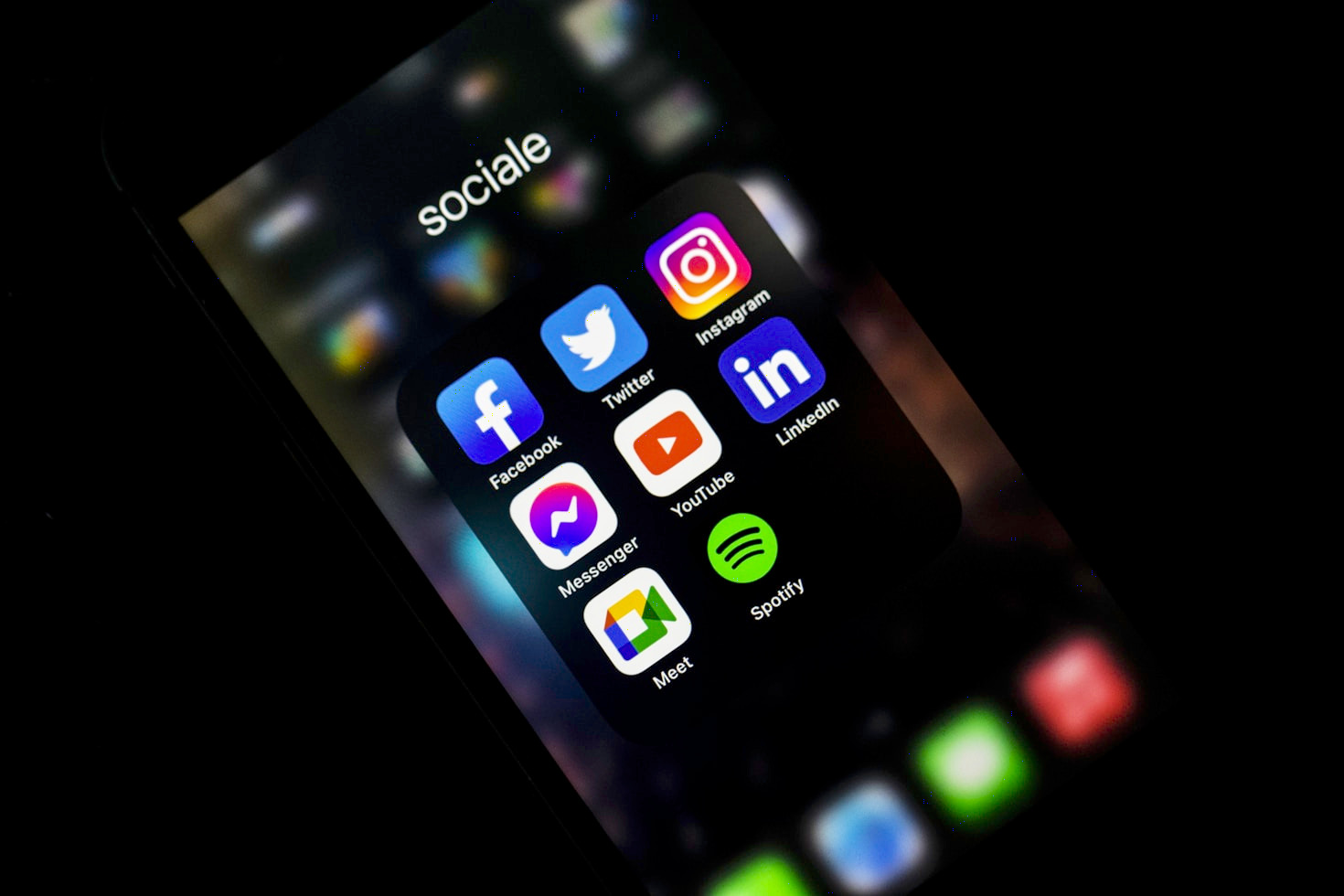
In the crowded world of social media, first impressions are everything. Your social media covers are often the first thing people see when they land on your profile, so why not make them unforgettable? A well-designed cover can instantly communicate your brand, personality, or current message, drawing in new followers and keeping existing ones engaged.
But before you start thinking you need expensive software or a design degree, think again! There’s a treasure trove of free tools out there that can help you create stunning social media covers with ease. And we’re going to dive into the best of them, with a special spotlight on the powerful features of VistaCreate.
Why Are Custom Social Media Covers So Important?
- Brand Recognition: Consistent branding across all platforms reinforces your identity.
- Professionalism: A polished look shows you mean business.
- Engagement: Eye-catching visuals stop the scroll and encourage interaction.
- Information Hub: Use them to promote events, sales, or new content.
- Personality: Showcase your unique style and connect with your audience.
The Best Free Tools for Your Social Media Cover Arsenal:
1. Canva: The Undisputed King of User-Friendliness
Canva is almost synonymous with easy graphic design, and for good reason. Its drag-and-drop interface, massive library of templates, and vast collection of free stock photos, icons, and fonts make it incredibly accessible for beginners and powerful enough for more experienced creators.
Key Features for Social Media Covers:
- Pre-sized Templates: Canva offers templates specifically sized for Facebook, Twitter, LinkedIn, YouTube, and more, saving you the hassle of remembering dimensions.
- Rich Asset Library: Thousands of free elements to choose from, including illustrations, shapes, and photos.
- Text Tools: A wide variety of fonts and text effects to make your message pop.
- Collaboration: Share your designs with team members for feedback.
2. VistaCreate: A Feature-Packed Powerhouse (Our Top Pick!)
While Canva is fantastic, VistaCreate often flies under the radar for some, but it absolutely shouldn’t! It offers a highly intuitive experience combined with a robust set of features that rival (and sometimes surpass) other free tools. If you’re serious about creating dynamic social media covers, VistaCreate is a must-try.
VistaCreate Tips for Amazing Social Media Covers:
- Start with Stunning Templates: VistaCreate boasts an incredible array of professionally designed templates for every social media platform imaginable. Browse by style, industry, or occasion to find the perfect starting point.
- Leverage Their Free Media Library: Access millions of free photos, vectors, videos, and backgrounds. This is a huge advantage, allowing you to create unique designs without hunting for external assets.
- Magical Background Remover: One of VistaCreate’s standout features is its background remover. Upload your own image (like a product shot or a headshot) and instantly remove the background to place it seamlessly onto your cover design. This adds a professional touch with minimal effort.
- Animation for Dynamic Covers: While not all platforms support animated covers, for those that do (like Facebook), VistaCreate allows you to add subtle animations to text or elements, making your cover truly stand out.
- Brand Kit (Free Version Limitations Apply): Even with the free version, you can get a feel for organizing your brand colors and fonts, making it easier to maintain consistency across all your designs.
- Resize with Ease: Once you’ve perfected a design, you can often resize it for different social media platforms with a few clicks, saving you tons of time.
3. Adobe Express (Formerly Adobe Spark): Professional Quality, Simplified
Adobe Express brings the power of Adobe’s design tools into a simplified, web-based interface. It’s great for those who want a more “designed” look without the complexity of Photoshop.
Key Features for Social Media Covers:
- Adobe Font Access: Get access to a good selection of Adobe Fonts to give your text a polished look.
- Creative Cloud Integration: If you use other Adobe products, it can integrate fairly smoothly.
- Professional Templates: High-quality templates that feel a bit more refined.
4. GIMP: The Open-Source Photoshop Alternative
For those who want more granular control and don’t mind a steeper learning curve, GIMP (GNU Image Manipulation Program) is a powerful, open-source image editor. It’s essentially a free version of Photoshop.
Key Features for Social Media Covers:
- Advanced Editing: Layers, masks, filters, and precise selection tools give you immense creative freedom.
- Custom Brushes & Effects: Create unique textures and artistic effects.
- No Templates (Mostly): You’ll be building from scratch, which means total control but also more effort. This is for users who want to dive deep into image manipulation.
5. Snappa: The Speed Demon for Non-Designers
If you find other design tools a bit “clunky” or overwhelmed by too many menus, Snappa is your solution. It’s built with one goal in mind: helping you go from a blank screen to a finished social media cover in under 60 seconds. It strips away the complex layers of professional software and leaves you with a streamlined, lightning-fast editor.
Snappa Tips for High-Speed Customization:
- Social Media “Safe Zone” Overlays: This is a game-changer. When designing a Facebook or Twitter cover, Snappa displays an overlay that shows which parts of your image will be cut off on mobile vs. desktop. This ensures your text and logo are always perfectly visible on every device.
- Access the Entire Library for Free: Unlike other tools that hide their best photos and shapes behind a “Pro” paywall, Snappa gives free users access to their full library of 5 million+ high-resolution stock photos and thousands of templates.
- One-Click Image Resizing: Designed a perfect YouTube banner and want to turn it into a LinkedIn cover? Snappa’s “Magic Resize” allows you to instantly repurpose your design for other platforms without having to manually move every element.
- Visual Effects Sliders: Instead of complex filters, Snappa uses simple sliders for brightness, contrast, saturation, and even a “darken” overlay. This is perfect for making your background image a bit darker so that your white text stands out clearly.
- Direct Social Sharing: You can connect your social media accounts directly to Snappa. Once your cover is ready, you can hit “Share” and update your profile without ever downloading the file to your computer.
The Pro Tip: While Snappa is incredibly powerful, the free “Starter” plan limits you to 3 downloads per month. This makes it the perfect “secret weapon” for monthly profile refreshes or special event promotions where you need one perfect, professional-looking graphic quickly.
| Tool | Best For | Free Plan Highlights | Download Limits | Key “Standout” Feature |
| VistaCreate | Pro features for free | Background remover & 10GB storage included. | Unlimited | One-click Background Remover (Rare in free versions!) |
| Canva | Beginner-friendly | 1.6M+ templates & massive icon library. | Unlimited | Massive Ecosystem (Everything you need in one place.) |
| Snappa | Speed & accuracy | Access to 5M+ high-res stock photos. | 3 per month | Safe Zone Overlays (Ensures covers look good on mobile.) |
| Adobe Express | Professional polish | 1,000+ Adobe Fonts & generative AI credits. | Unlimited | Generative AI Tools (Text-to-image/Text-to-effect.) |
| GIMP | Total creative control | Advanced layers, paths, and custom brushes. | Unlimited | Professional-grade Power (Offline, open-source freedom.) |
Tips for Designing Your Best Social Media Covers:
- Know Your Dimensions: Each platform has specific cover photo dimensions. Always check the latest requirements to avoid pixelation or awkward cropping. (VistaCreate and Canva handle this for you!)
- Keep it Clean and Clutter-Free: Less is often more. Your cover should be visually appealing without being overwhelming.
- Focus on Your Message: What do you want your cover to communicate instantly? Your brand name, a call to action, or a captivating image?
- Consider Mobile View: A significant portion of social media users are on mobile. Design with mobile viewing in mind, ensuring important elements aren’t cut off.
- Maintain Brand Consistency: Use your brand colors, fonts, and logo to create a cohesive look across all your platforms.
- Update Regularly: Refresh your covers to reflect new campaigns, seasons, or achievements. It shows your audience that you’re active and engaged.
Ready to Design?
No matter your design skill level, there’s a free tool out there to help you create stunning social media covers. We highly recommend starting with VistaCreate or Canva for their ease of use and wealth of resources. Experiment, have fun, and watch your social media profiles transform into engaging visual experiences!
What are your favorite free tools for social media design? Share your tips in the comments below!
Leave a Reply